
1. Home Screen Free
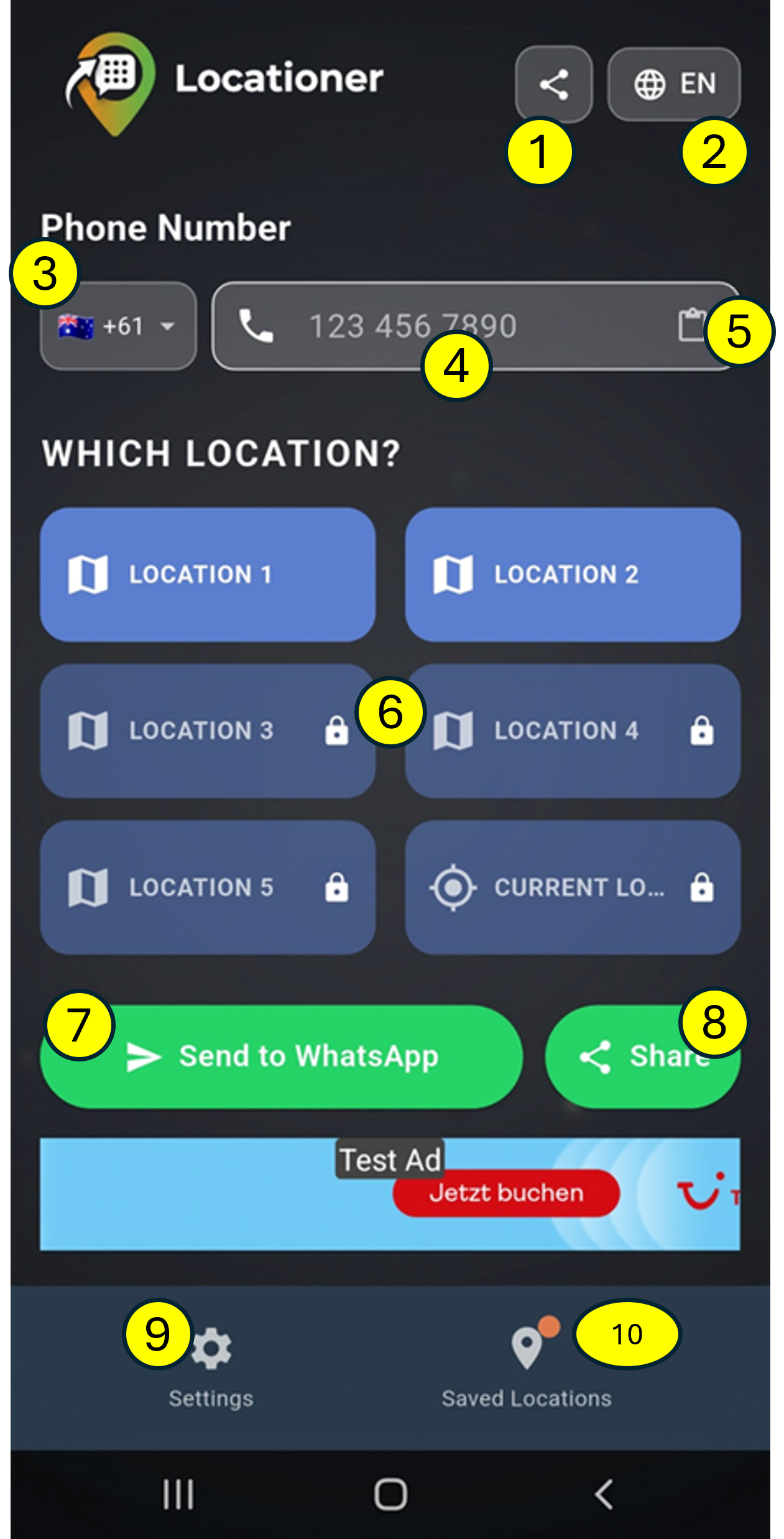
The Home Screen is where you perform the main action: sending a saved location to a phone number through WhatsApp.
- Share the Locationer app with other people.
- Quick language switcher.
- Country code selector.
- Phone number field.
- Paste a copied number here — the app can auto-detect the country code.
- Saved location slots. Free users get the first two. Tap an empty slot to open the map and save a location.
- Send to WhatsApp.
- Share the selected location via the Android share sheet (no phone number needed).
- Open Settings.
- Open Saved Locations.
2. Location Permission
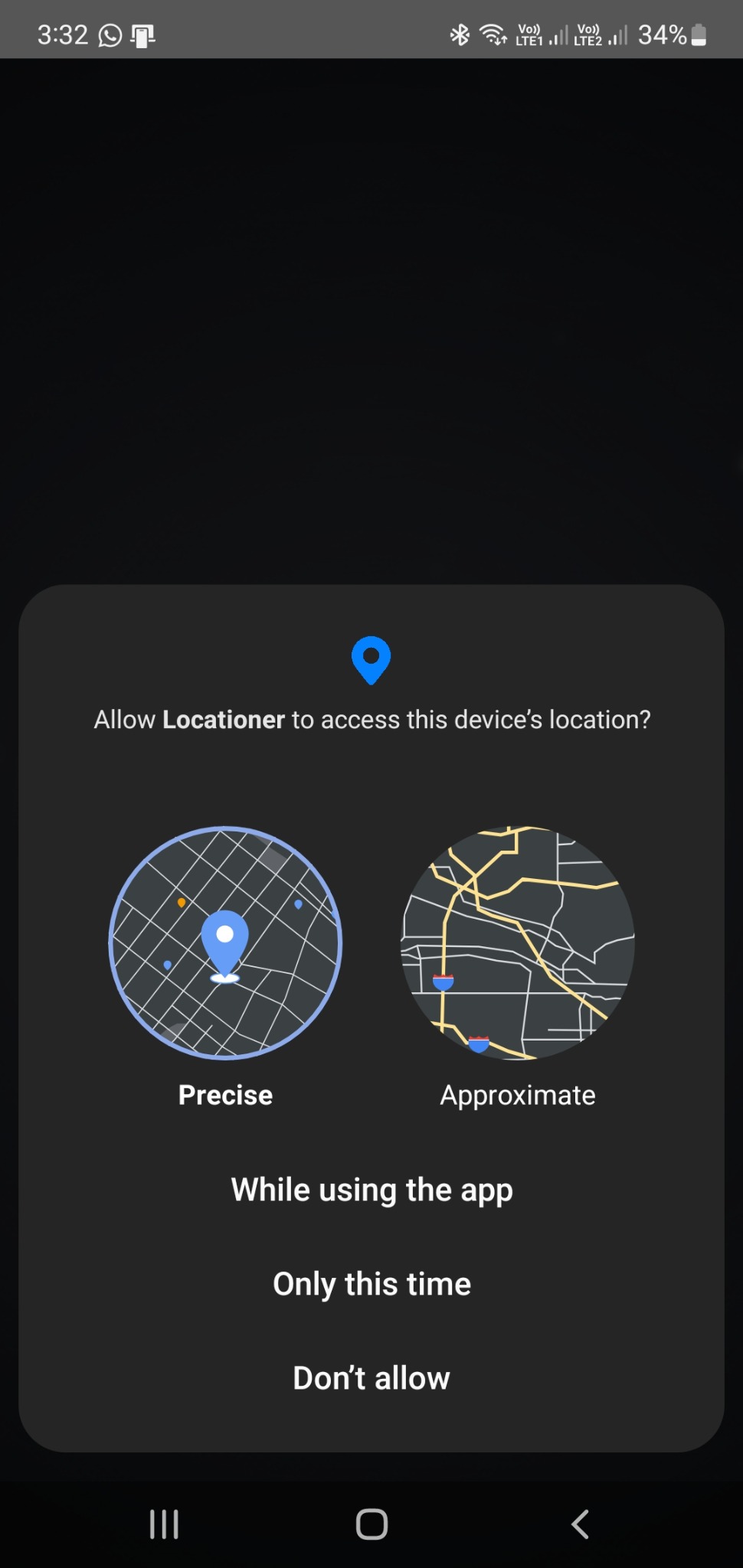
When using the Current Location feature, Android will ask for location permission.
Recommended: Precise Location – While using the app.
Locationer does not track you. The permission is only used to generate the location link you save for sharing.
3. Adding a Location
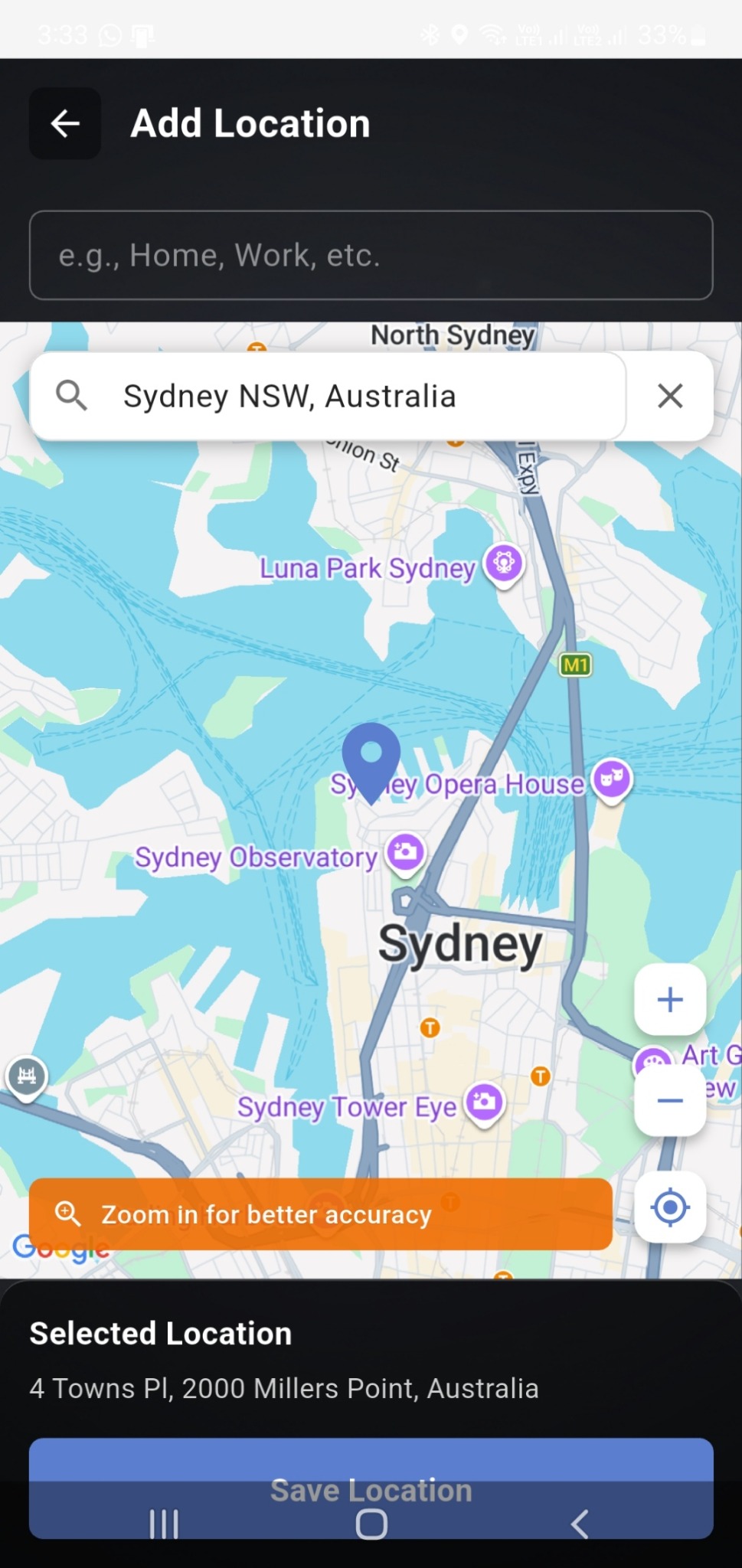
When you tap a location slot that has no saved location yet, the map opens so you can pick one.
- Move the map to the desired place.
- Zoom in as much as possible for accuracy.
- The selected address appears at the bottom.
- Tap Save Location and give it a name (Home, Work, Warehouse, etc.).
4. Settings Screen Free
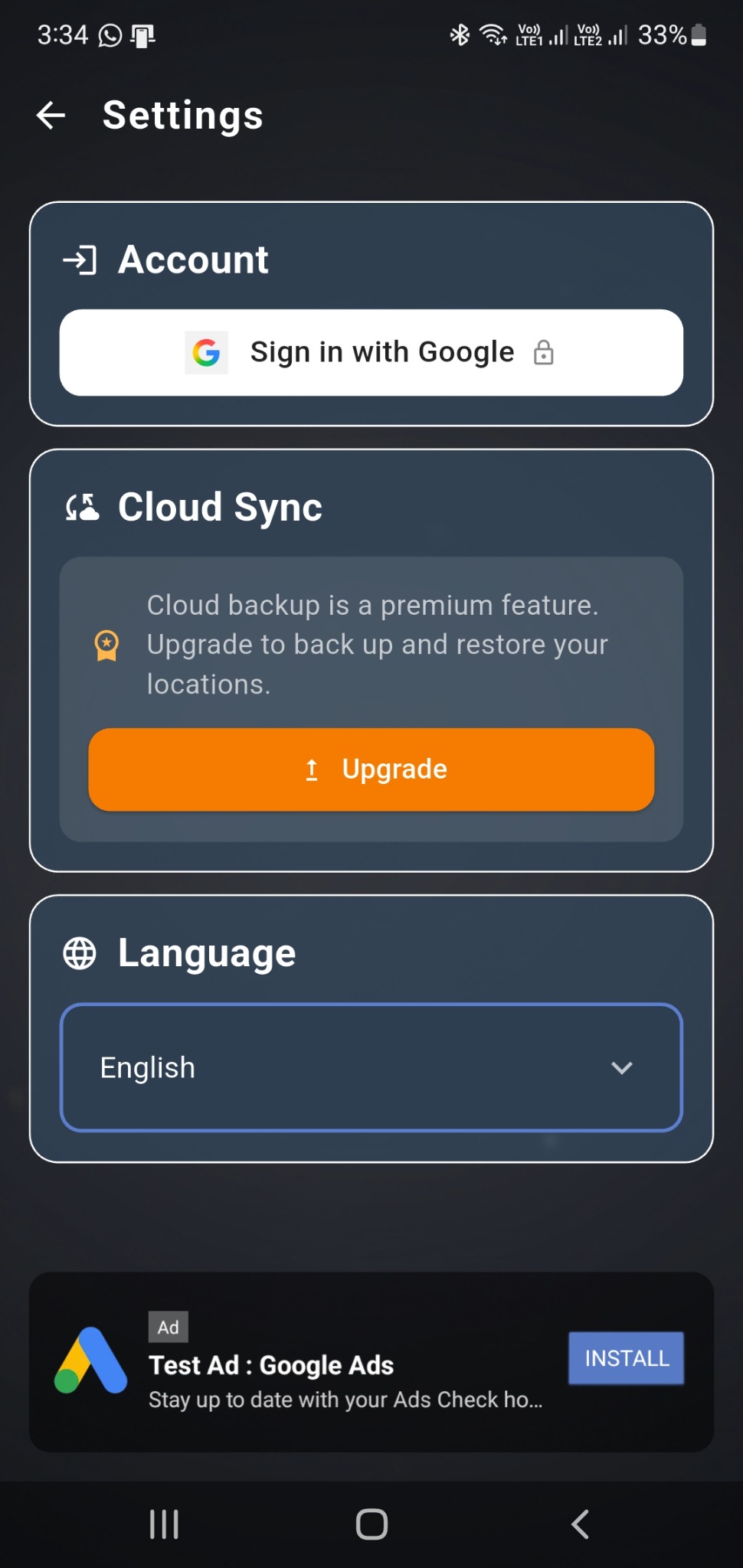
Settings let you manage your account and preferences.
- Sign in with Google – Required for premium cloud features.
- Cloud Sync Premium – Backup and restore your saved locations.
- Language – Change the app language.
- Ads are shown in the free version.
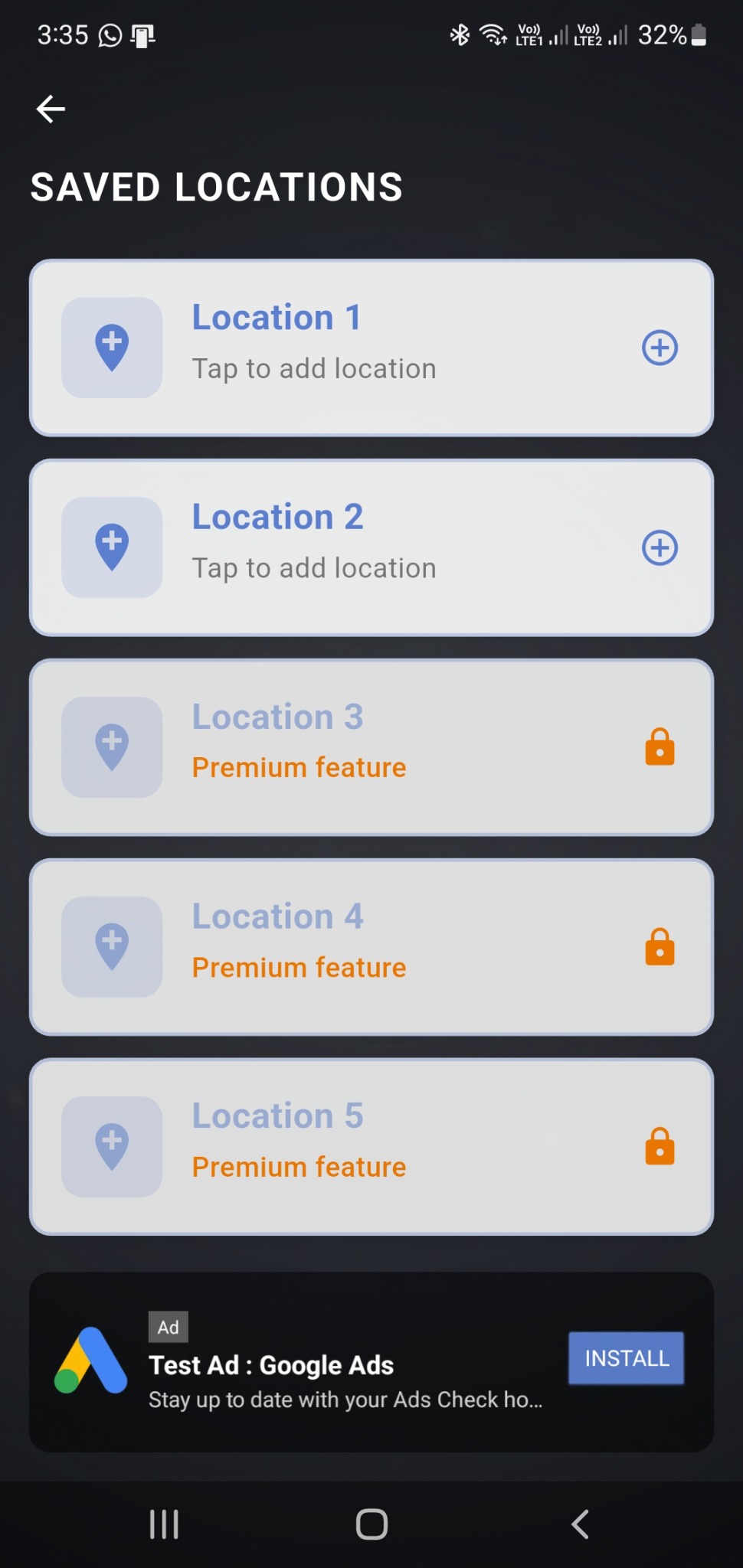
5. Saved Locations Screen
Manage all your saved spots from one place.
- Tap a slot to add or edit a location.
- Free users have two location slots.
- Additional slots unlock with Premium.
6. Home Screen Premium
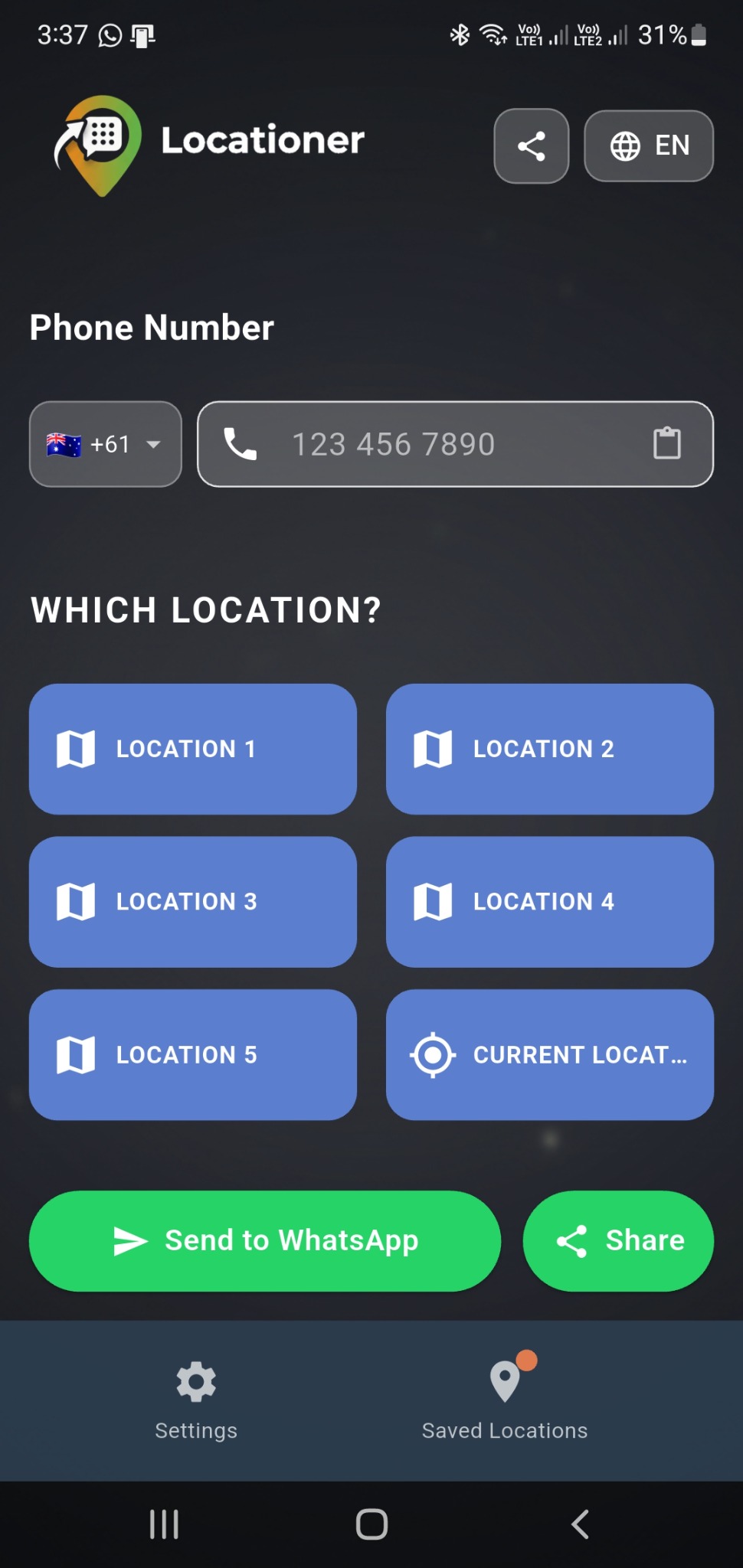
Premium users unlock additional capabilities on the home screen.
- Five saved location slots.
- Dedicated Current Location slot.
- No advertisements.
- Cloud backup and restore options.
7. Settings Cloud Sync
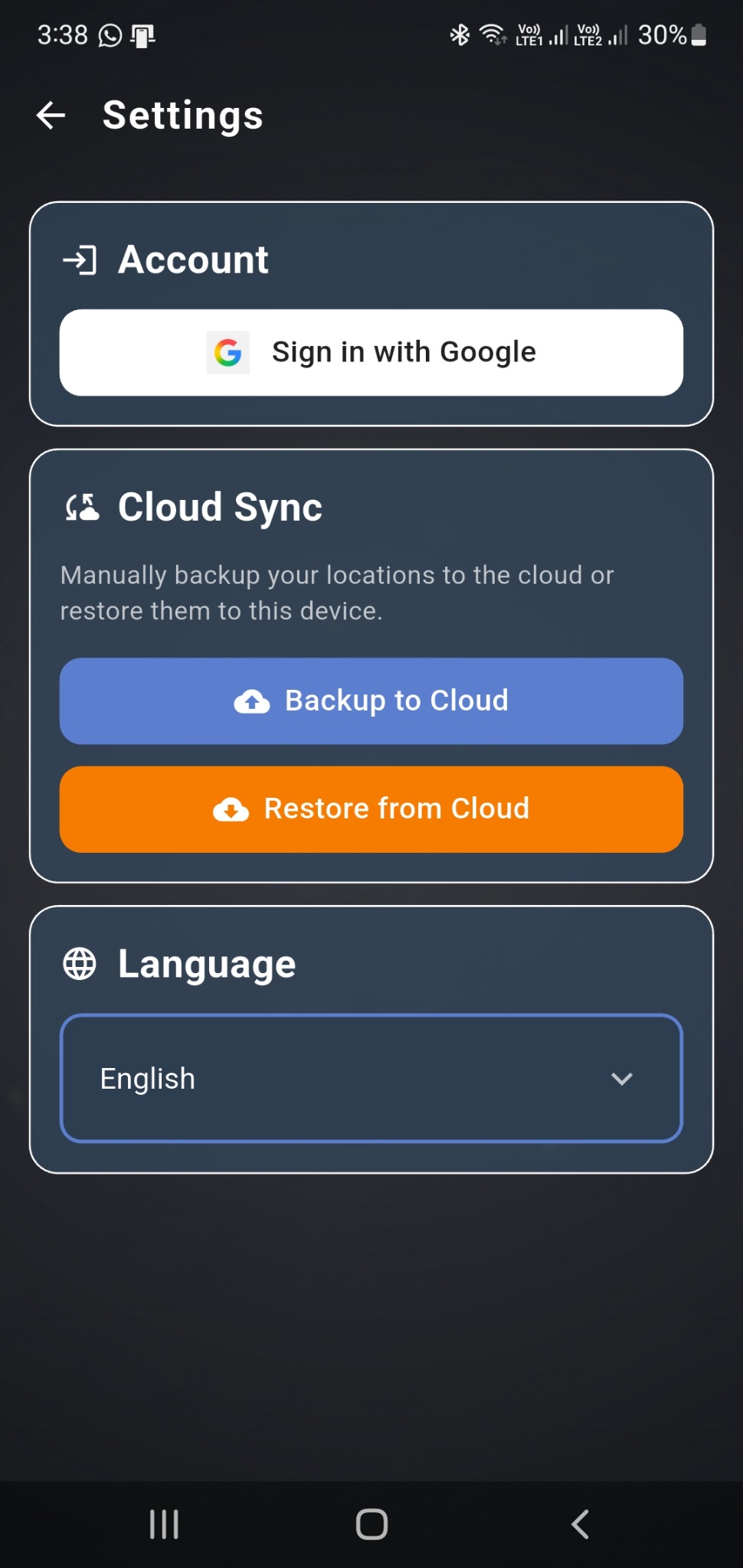
Premium users can back up and restore locations to the cloud.
- Backup to Cloud – Manually save encrypted locations.
- Restore from Cloud – Restore them on any device.
Backups are manual and all location data is encrypted.
8. Selecting a Location
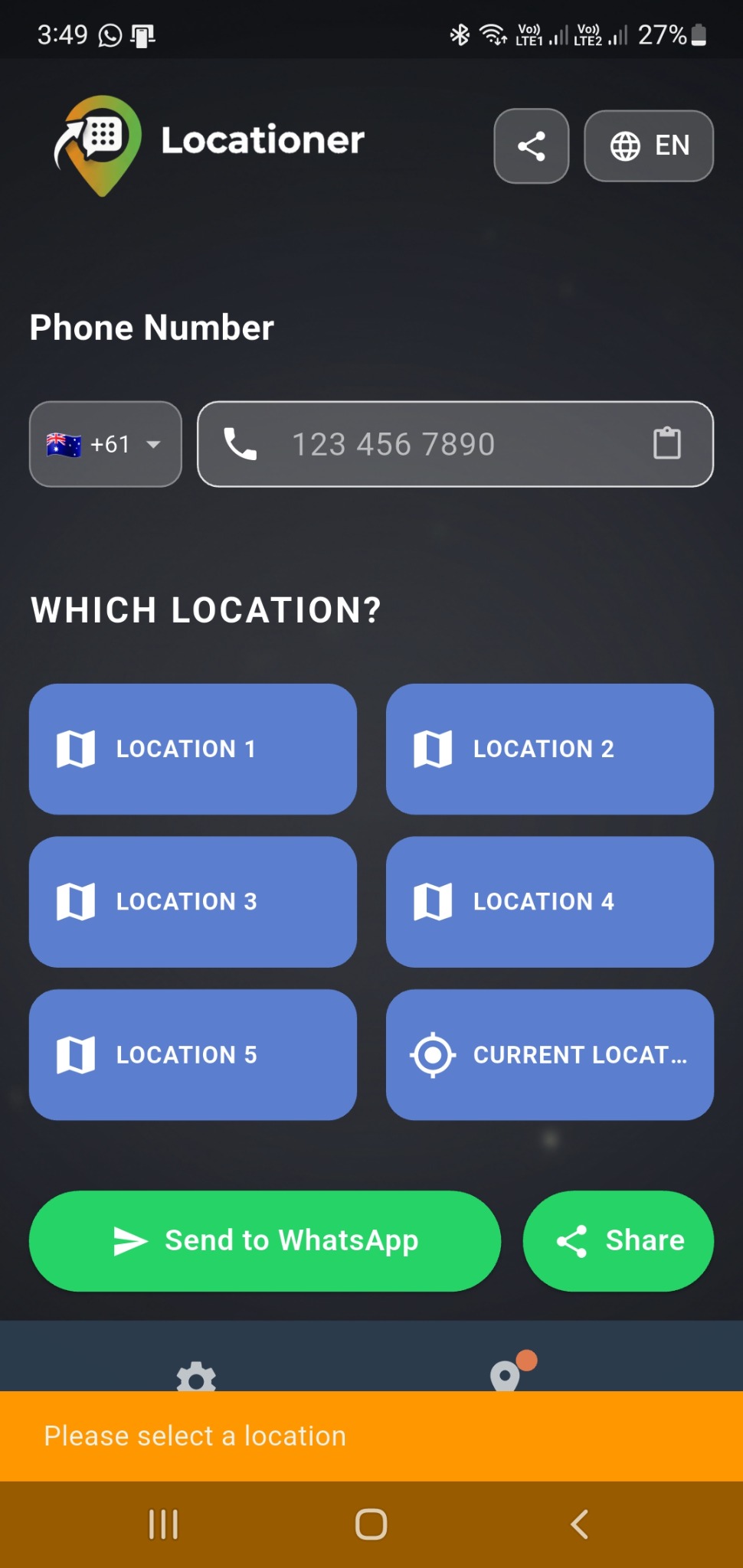
You must select a location before sending.
If you try to send without one, the app shows:
'Please select a location'.
9. Sending Without a Phone Number
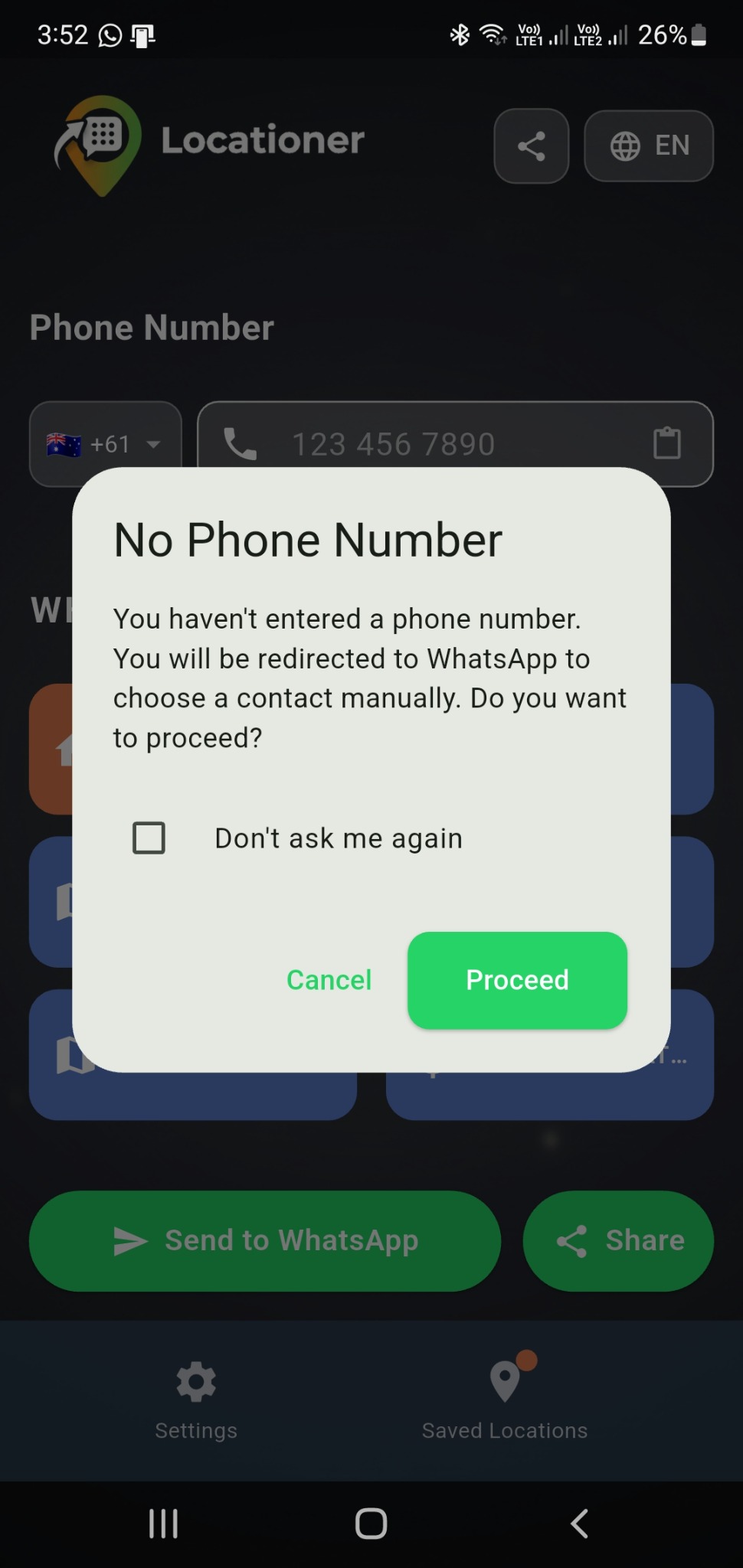
If you tap Send to WhatsApp with no phone number entered, the app warns you.
Tap Proceed to open WhatsApp and choose a contact manually.
Enable 'Don't ask me again' to skip this warning in future.
Privacy
Does not track your movement or location in the background.
Does not need access to your contact list for its core workflow.
Does not store who you send a location to.
Cloud-saved locations are encrypted before upload.
Read our full Privacy Policy.